Showing posts with label Tips and Tricks. Show all posts

Sunday, February 10, 2013

Homeschool Activity Book

We're not actual homeschoolers.  We haven't registered with the state or anything like that, and I don't follow one specific curriculum  but I do try to be as purposeful with our days at home as possible.  One thing that has been awesome for us and fun for Rylea is the activity book I've made for her over the past year.

I got a regular 3-ring binder and filled it with sheet protectors like these:
 And then I got her some small dry erase markers like these:


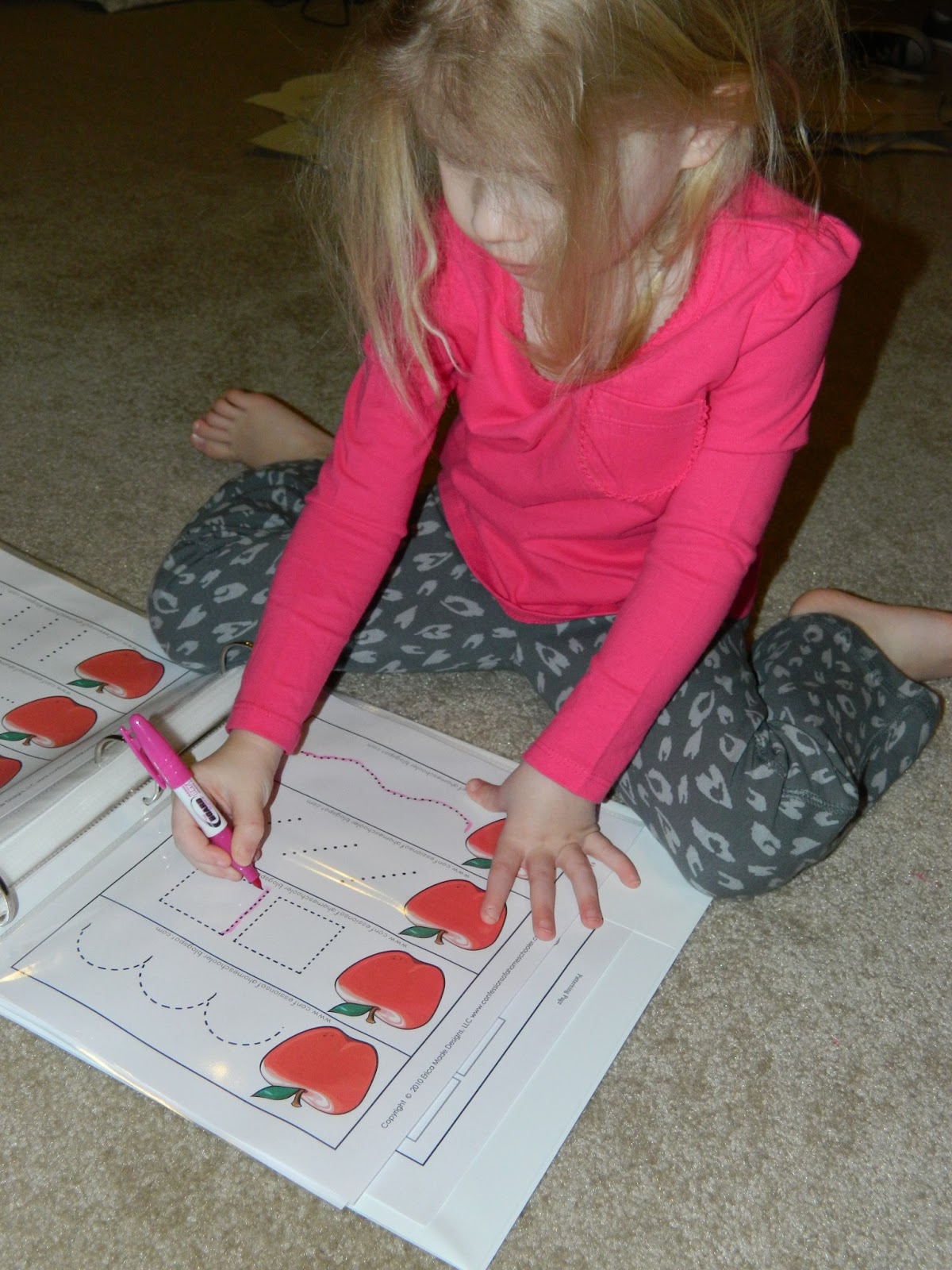
Then I printed out a bunch of worksheets, letter tracing, coloring sheets, pattern worksheets, etc. from various sites around the internet and put those into the page protectors.  Now, Rylea can write and color on those with her markers and erase them and do it over and over again.  She has great control with her markers now and recognizes most letters.  I try and sit with her daily to do some writing and letter practice, but, some days it just doesn't happen at all and some days I let her get her book out on her own and do what she wants from it.
Sugarplum Cuties: Homeschool Activity Book
 The worksheet above is from Worksheet Works.  You can type in any word or letter or number or whatever you want and then it will creat a PDF worksheet for you to print out and let your kiddo practice on.  It's really awesome.  You can also choose print or cursive and there are a bunch of other options too.

Sugarplum Cuties: Homeschool Activity Book

This worksheet with the apples is from our A week.  (Don't mind the crazy hair, she slept with braids in and wouldn't let me take them out.)  It's part of an entire curriculum you can get from Confessions of a Homeschooler called Letter of the Week.  I highly recommend it if you have a preschooler.  When you buy the program you get everything in PDF format ready to print out.  She even sends lesson plans for the entire alphabet that corresponds to all of her worksheets.  So awesome!  

I also have a Homeschool Pinterest board that you can follow here to see other awesome websites and sources I've used  before.  Happy homeschooling!

Friday, February 8, 2013

Google Searches


If you know me personally you know I Google absolutely everything.  I have a question, Google.  I have a symptom, Google.  My kids are bleeding profusely, Google.  I feel like if you could go back and look at all my Google searches you could accurately describe the timeline of my life.  That's probably why investigators are always searching criminals's computers, so they can see what they've been up to via Google.


  • When is constipation dangerous? (Isn't that lovely, just another awesome side effect of pregnancy).
  • Nose spray addiction - There was a husband and wife debate that needed solving
  • Flounce skirt tutorial
  • Proverbs 15:1
  • Blogger HTML - that one is a doozy, I was not cut out for computer code
  • IRS Form 4852
  • Eskimo - Rylea wanted to know what an Eskimo was so I googled some pictures for her to see
  • How to add a paypal button to blogger


I honestly don't know what I would do without Google capabilities.  I might have to have a comprehensive set of encyclopedias at home to consult daily.  I taught myself how to sew and crochet (basic stuff) using Google, among a million other things.

What have you Googled lately??


Monday, February 4, 2013

Top 10 Sewing Necessities

Sugarplum Cuties: Sewing necessities


1. Cutting Mat - I use an Olfa brand cutting mat and mine is 24 x 36.  It's been the perfect size for me.  A cutting mat is for sure an essential tool when sewing as much as I do, and if you use a coupon at JoAnn then you can find a good deal.

2. Rotary Cutter - Goes hand in hand with a cutting mat.  There's no sense in trying to trace and cut straight lines with a pair of scissors when you can just line up your straight edge and run your blade across the fabric.  Done.  I use a Fiskars one with 45mm blades.

3. Measuring Tape - Sometimes I leave my house and the only accessory I'm wearing is my measuring tape.  No joke.  I wear it around my neck so I can constantly check and recheck my measurements when I'm sewing to make sure I haven't made an error, and sometimes we head out the door and I forget to leave my work behind.  Whatevs.  It's also a fun toy for kids.  Mine use it all the time to "measure" each other.  As in, "Dieter, you are 40 hundred."

4. Scissors - A no brainer.  I use a pair of Fiskers scissors called "razor sharp."  They're not kidding.  Make sure you're always keeping your fabric scissors and your paper scissors separate.  One trick I use is that I always buy blue paper scissors so my kids and husband know that the only scissors they can use are the blue ones.  Paper dulls scissors really fast and will ruin your nice fabric scissors in a jiff.

5. Pins - I pin my stuff on a daily basis.  It keeps my seams nice and even and straight and keeps my measurements accurate.

6. Serger - Ahh, my 3rd baby (for now).  I just love my serger.  You can read more about it in my FAQ post here.

7. Fabric - Hoards of fabric.  Stacks of fabric.  Fat stacks.  I kid, but really what are you doing sewing if you don't have any fabric.  Watch out though, it's about as addicting as buying upcycles.  Don't say I didn't warn you.

8. Poster Board - You might think this is a weird one, but I use poster board for all my pattern work.  Whether I'm drafting my own patterns or printing PDF ones (I avoid store bought patterns like the plague), I'm always tracing the final version on a piece of poster board.  I write right on it in a sharpie what size it is and what the final product is and then I punch a hole in it and hang it on a binder ring with the rest of its counterparts.  I'm a stickler for posterboard patterns.

9. Ruler/Yardstick - Used with #1 and #2, obviously you need a good, strong ruler with a straight edge to cut using your rotary cutter.  I use an acrylic one with quarter inch measurements, and I also use a metal yard stick.  My kids use them as swords when I'm not looking.

10. Dove Dark Chocolate - This one can be substituted for Diet Cherry Dr. Pepper, Coffee, those little pink candies that taste like pepto bismol, Reese Cups, Dark Chocolate Covered Almonds or Sour Patch Kids.  Take your pick, but I like to have junk food on hand at all times.  It helps me think...or something.

What essential tools do you keep in your sewing room?

Thursday, January 24, 2013

Photo Editing

One question I am often asked is what photo editing software I use when posting pictures to my Facebook group and page.  As much as I wish I did, I don't have Photoshop right now, so I use a combination of a few online editors to get the job done.  Before I offer advice of any kind please understand that I am in no way qualified as a graphic designer or anything remotely close to that.  Quite frankly, I stink at logos and fonts and photo editing in general, but there are a few programs I've found that have helped me stink less.  Maybe.

Microsoft Paint


Believe it or not, that old program that you used to use to draw goofy things on your computer is good for photo editing too.  If you have a PC you have Paint.  It's usually somewhere in Programs -> Accessories depending on what version of Windows you are running.  You can crop images, add shapes, add text, resize, etc.  I use this program a lot if I want to add text using a specific font on my computer.  I also use it when I'm resizing images like for creating my Facebook banners.  You can upload a picture in there to edit, or you can start from scratch and create your own images.  I created this banner using just the features in Paint:


iPiccy


iPiccy is on online photo editor that I think is like a 'lite' version of Photoshop.  You can add layers much like Photoshop.  There is also an "autofix" setting that will automatically fix your photo, and lots of other presets like a cartoonizer and pencil sketch setting that are fun to use and see how they make your photos look.  You can also add textures, text, and stickers to your photos, and all the features are completely free.  The only thing you can't do in iPiccy is create photo collages which brings me to my next program.

PicMonkey


PicMonkey is just straight up awesome.  They upload stickers and fonts on there that coordinate with the upcoming holidays.  So right now there are a bunch of cool edits you can use for Valentine's day.  Some of them are Royal features, which means you have to pay for them, but some of them are free.  The best thing about PicMonkey is that you can use it to create photo collages like this one I did here:


Honestly, the best way to get better at editing and creating images on the computer is to just jump right in there are start messing around with all the features and see what happens.  If you have any other awesome programs  you use leave them in the comments section so we can all benefit!

Related Posts Plugin for WordPress, Blogger...